Payroll Contribution Register: Insurances
Payroll Contribution Register: Insurances
iSuite Payroll management app helps your business to set up payroll contributions and calculate them on employee payslips. This article guides you to use the Payroll Contribution Registration feature for employees’ insurance contributions.
Requirements
This tutorial requires the installation of the following applications/modules:
- Payroll
Configuration of contribution register
Details about the configuration of the payroll contribution register at: Contribution Register and Contribution Register Categories.
Configure the payroll insurance contribution type
To access the payroll contribution type, in the main view, navigate to Payroll ‣ Payroll Contribution ‣ Payroll Contribution Type.
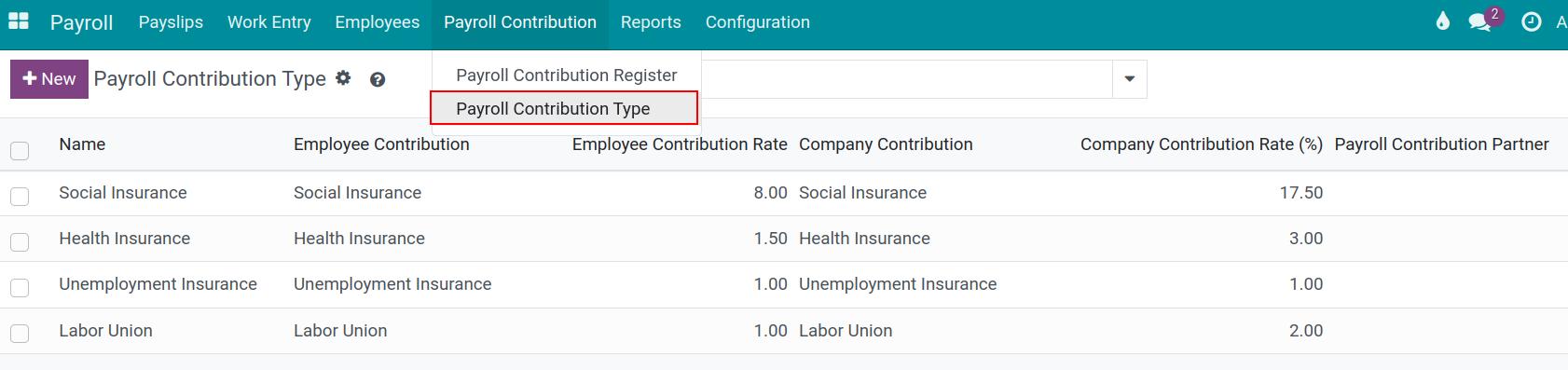
In the selected contribution type, could you adjust the following fieldsn:
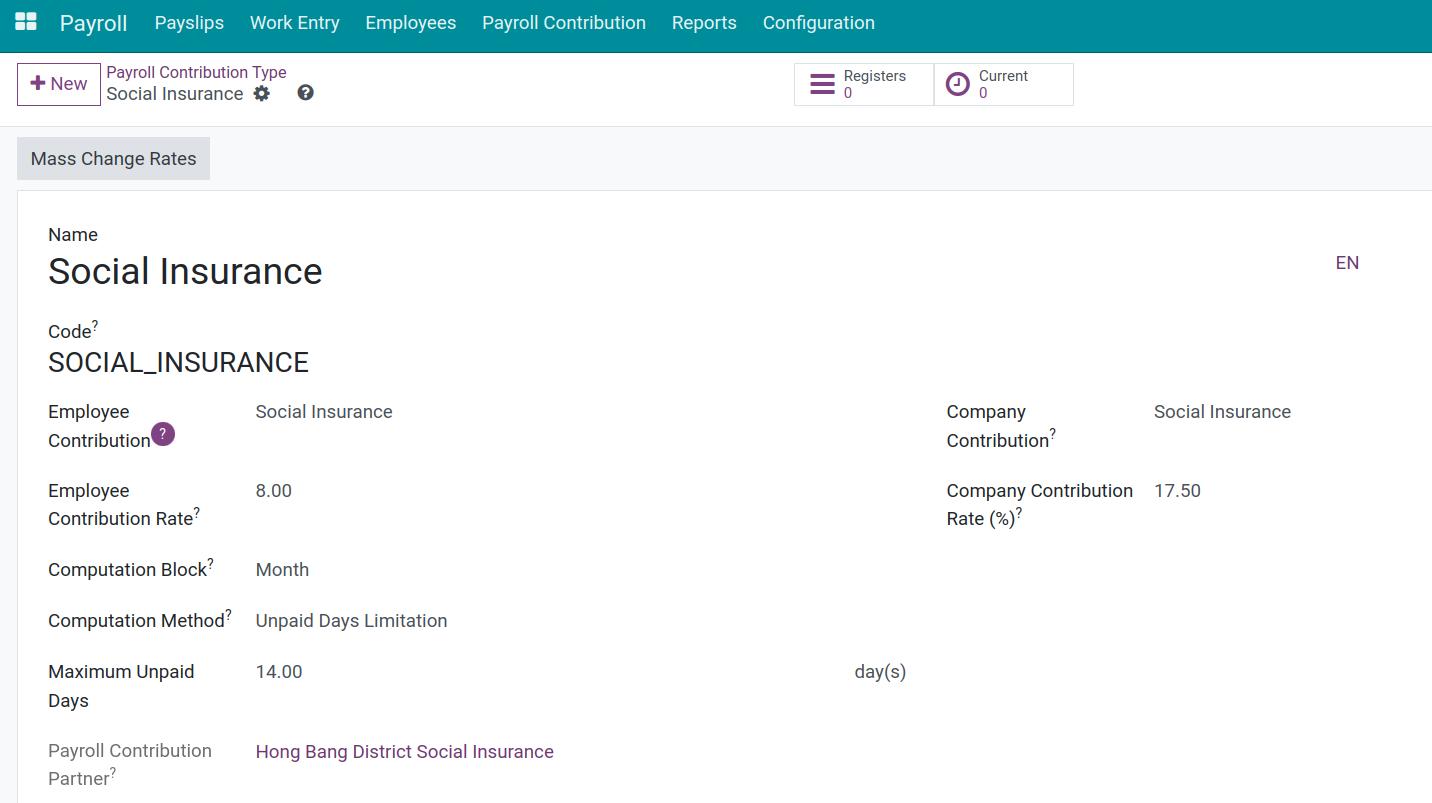
- Name:Give a name to the insurance. For example: Social Insurance, Health Insurance, Life Insurance, etc.
- Code:This is the insurance identification code used to compute the salary rules. Type the correct code for salary rules to work effectively.
- Employee Contribution - Company Contribution:A record created at Contribution Registers needs to be selected to determine the category of the created insurance. Note that the Employee Contribution field is required, while the Company Contribution field is optional (in which case this insurance is fully paid by the employee).
- Employee Contribution Rate - Company Contribution Rate (%):These rates specify the percentage of the employee contribution and the company contribution. The users could modify these rates pursuant to the law provisions and the company regulations.
- Computation Block: iSuite Payroll app provides 3 different computation blocks:
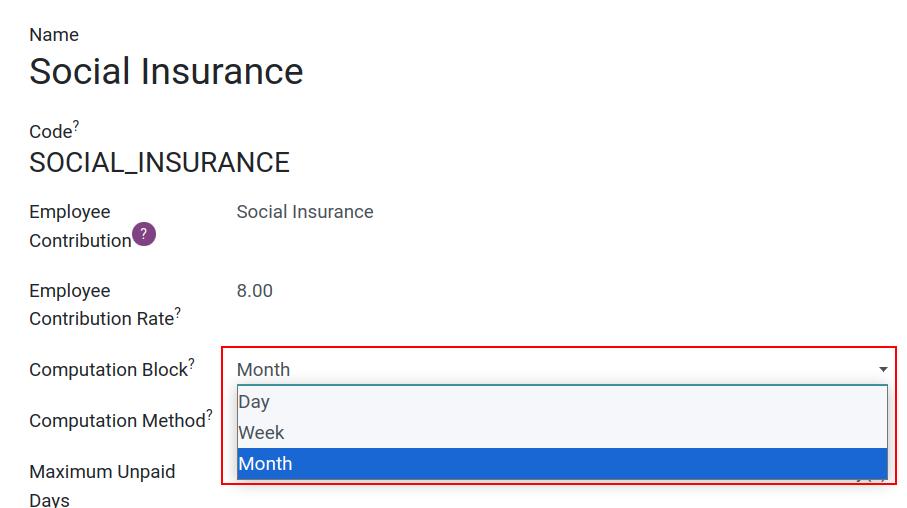
- Day: Employee insurance is paid according to the rate of actual working days to the number of theoretical working days in a month.
- Week: Same with the day computation block, but the unit is week.
- Month: Employees will have to work a specific number of working days to be confirmed to pay insurance. With this option, iSuite software will provide 2 different Computation methods:
- Unpaid Days Limitation: Setting up a maximum number of unpaid days per month in the below field. If the unpaid days in a month exceed that number, the insurance contribution will not be valid and vice versa.
- Half-up Duration Rounding: This computation method is based on the number of actual working days. If the employee works at least half the number of days in a month (selected in the Days in Month fixed as 28 days or depending on the actual number of days), the insurance contribution will be affected.
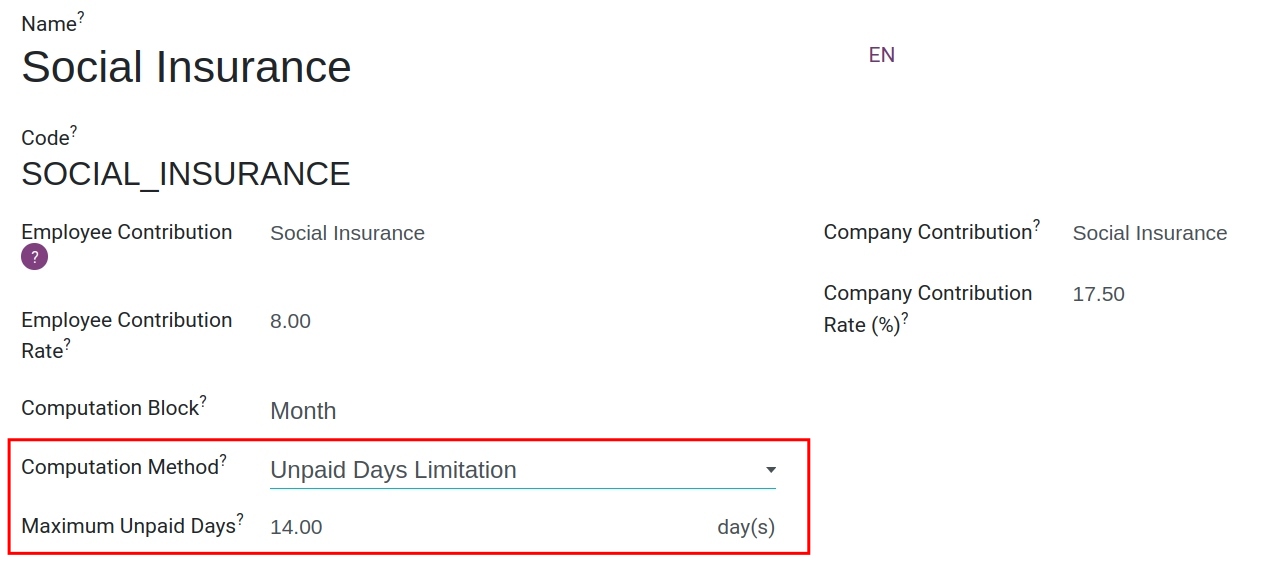
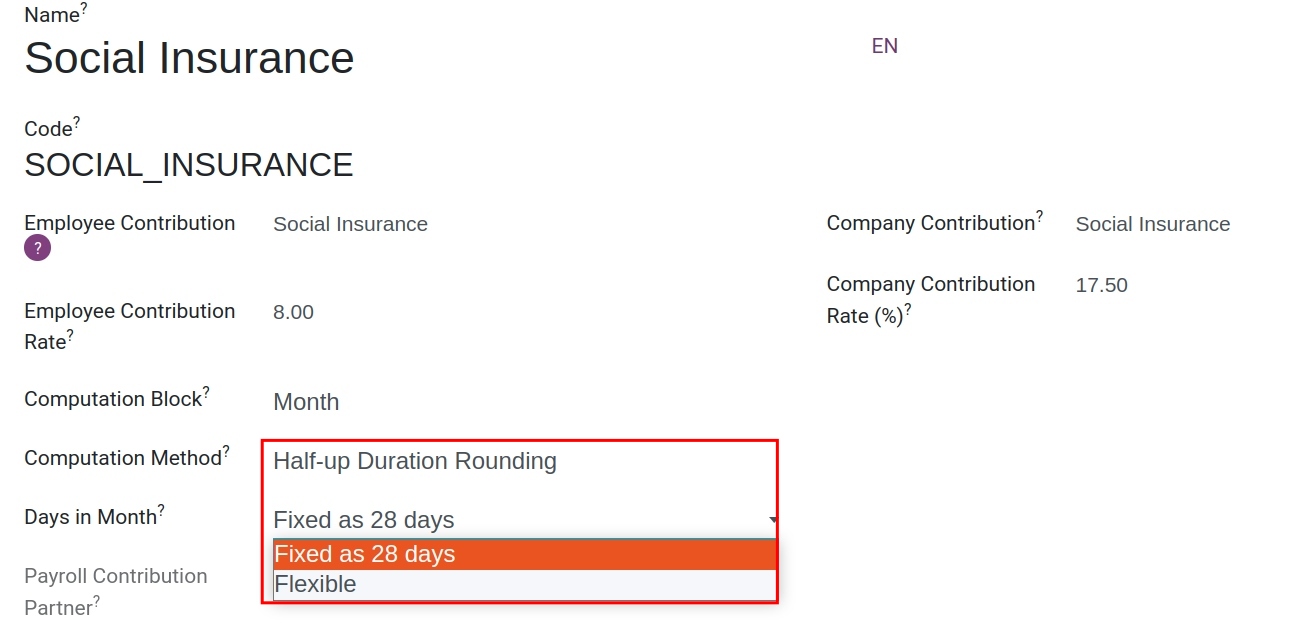
After filling in the all needed information, the system will automatically save your changes. When creating a new payroll contribution register and choosing this insurance contribution register type, the above data will be automatically filled in the corresponding fields.
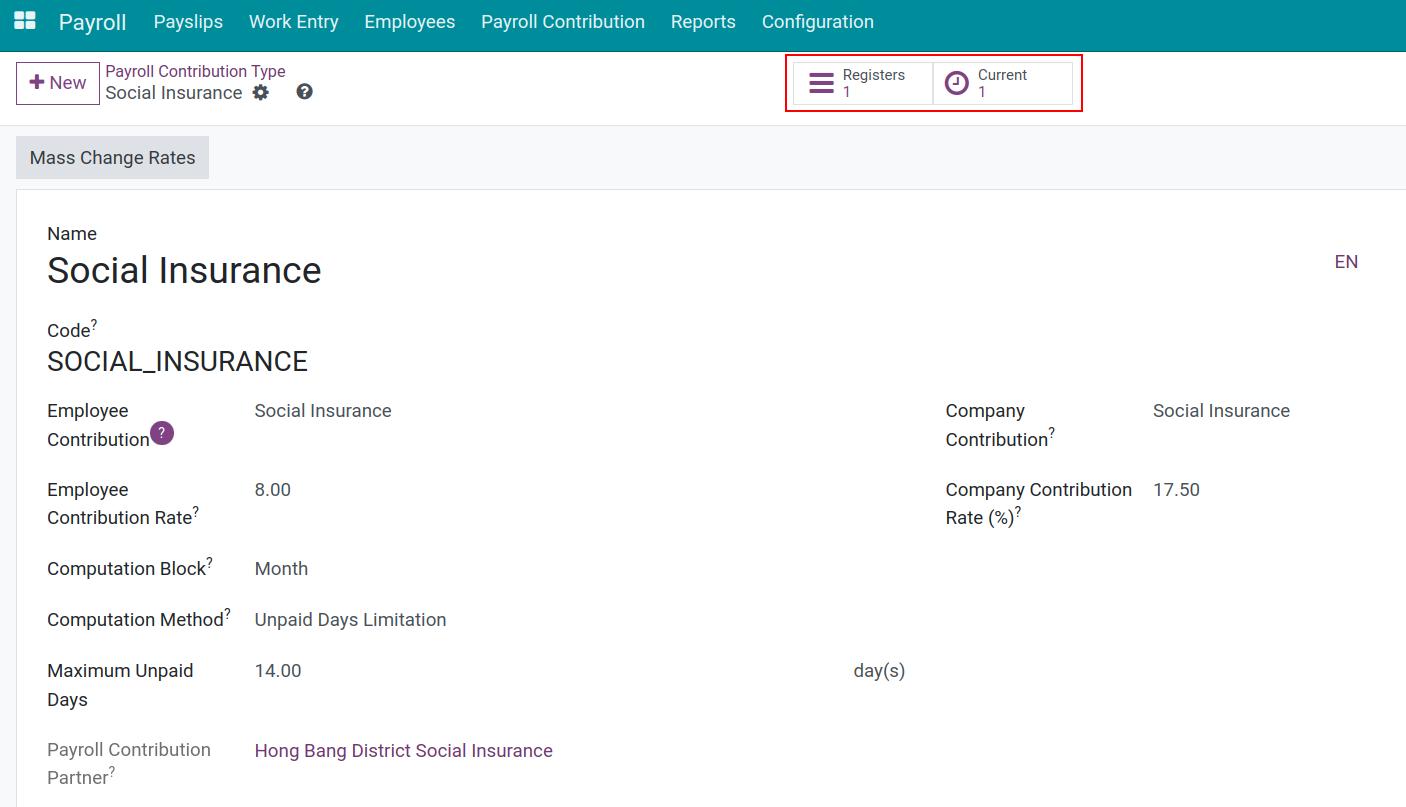
There are Registers and Current buttons in the upper right corner:
- Registers allows to access a list of payroll contribution registers under this type of insurance but not in Draft status.
- Current is to access the list of active payroll contribution registers.
Create the payroll insurance contribution register for employees
Each employee in the iSuite system will be registered with the insurance contribution corresponding to the insurance that they contribute. You can create from a contract, or create manually in the Payroll app.
To create the payroll insurance contribution register for an employee in the Payroll app, from the main view, navigate to Payroll ‣ Payroll Contribution ‣ Payroll Contribution Register ‣ New.

In the payroll contribution view, type the following fields:
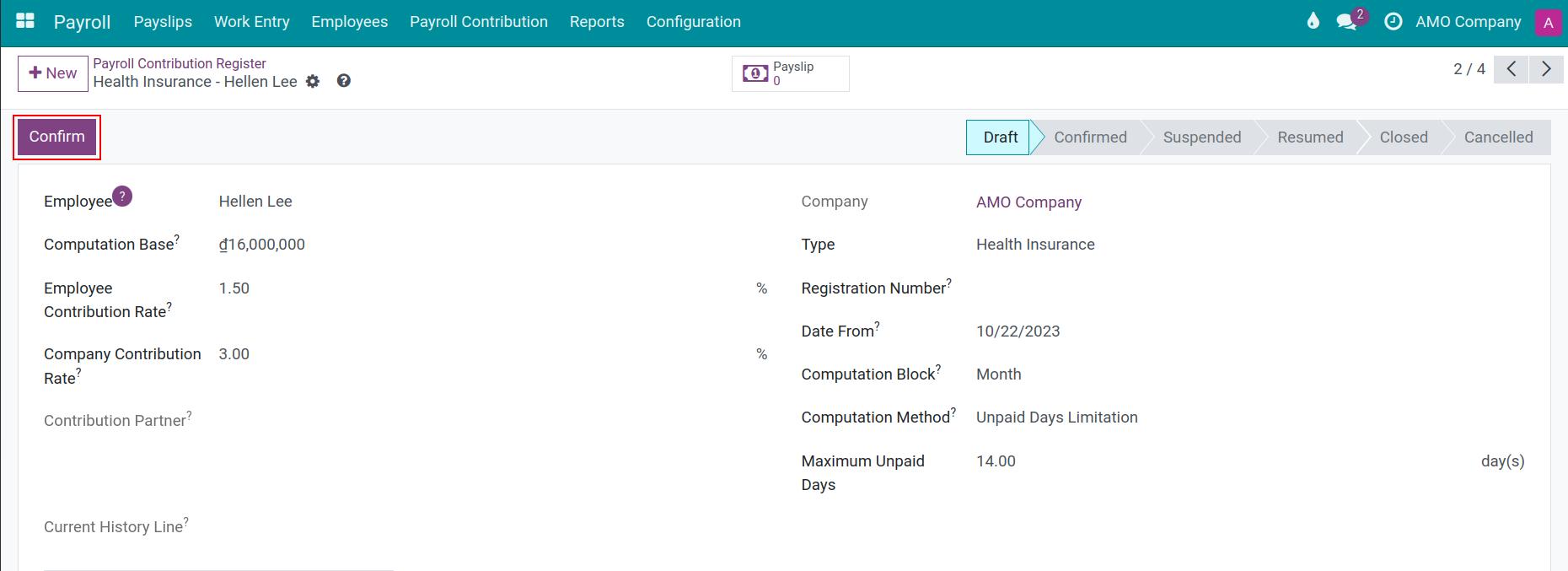
- Employee:Select an employee for this insurance contribution record.
- Type:Select the created payroll insurance contribution type (social insurance, health insurance, etc.). The contribution rate, computation block and method will be auto-updated according to this type.
- Registration Number:Enter the registered number to the social security authority. Use filters by registration number to find in need.
- Date From:Employee contribution register start date.
- Computation Base:The contribution amount of employee and company will be computed by multiplying the corresponding contribution rate by the amount in this computation base. If creating an insurance contribution from a labour contract, the base amount will be automatically suggested according to the basic salary contained in the contract.
Tip
The field data in record of insurance contribution could be customised. So make the most of it in the particular cases (E.g.: there is a difference between the basic salary to pay insurances and the salary amount on the labour contract).
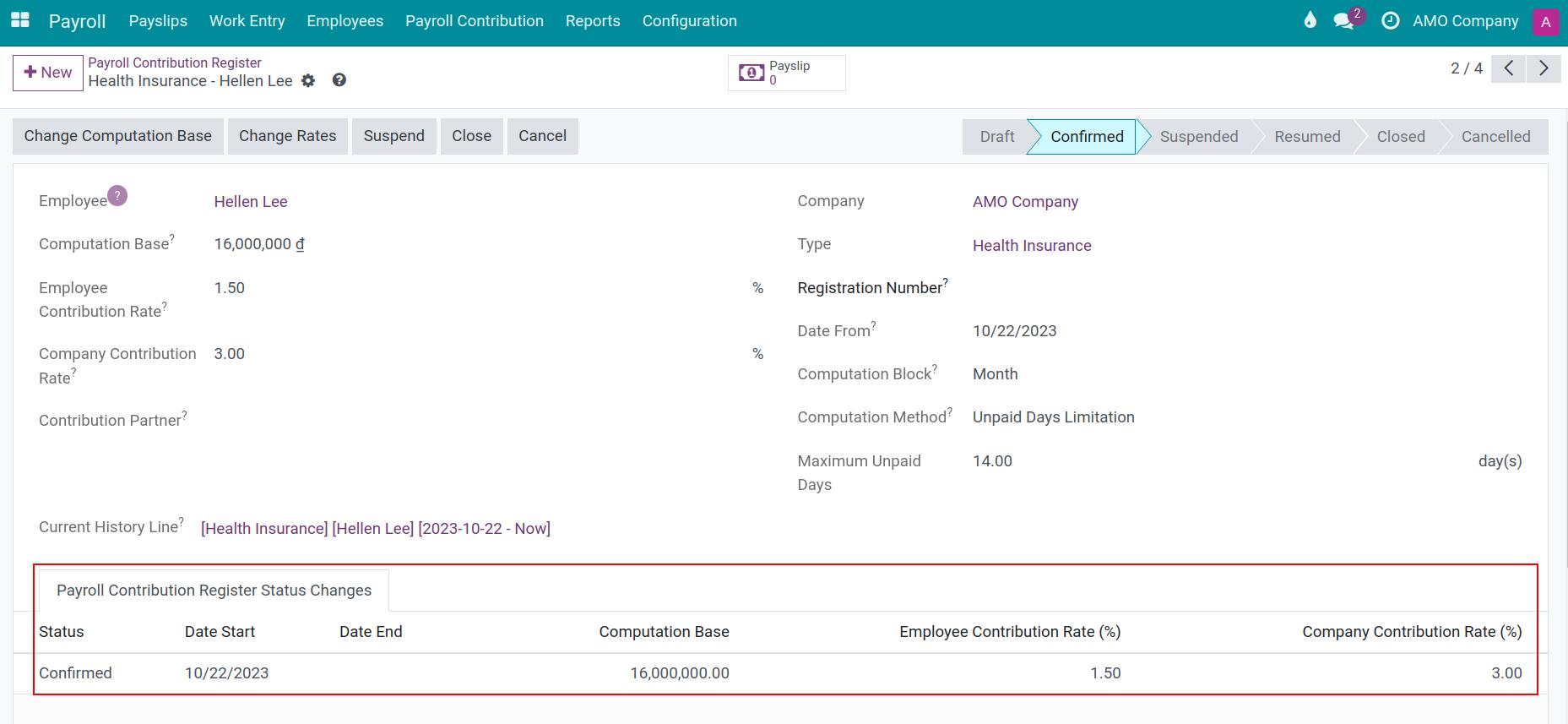
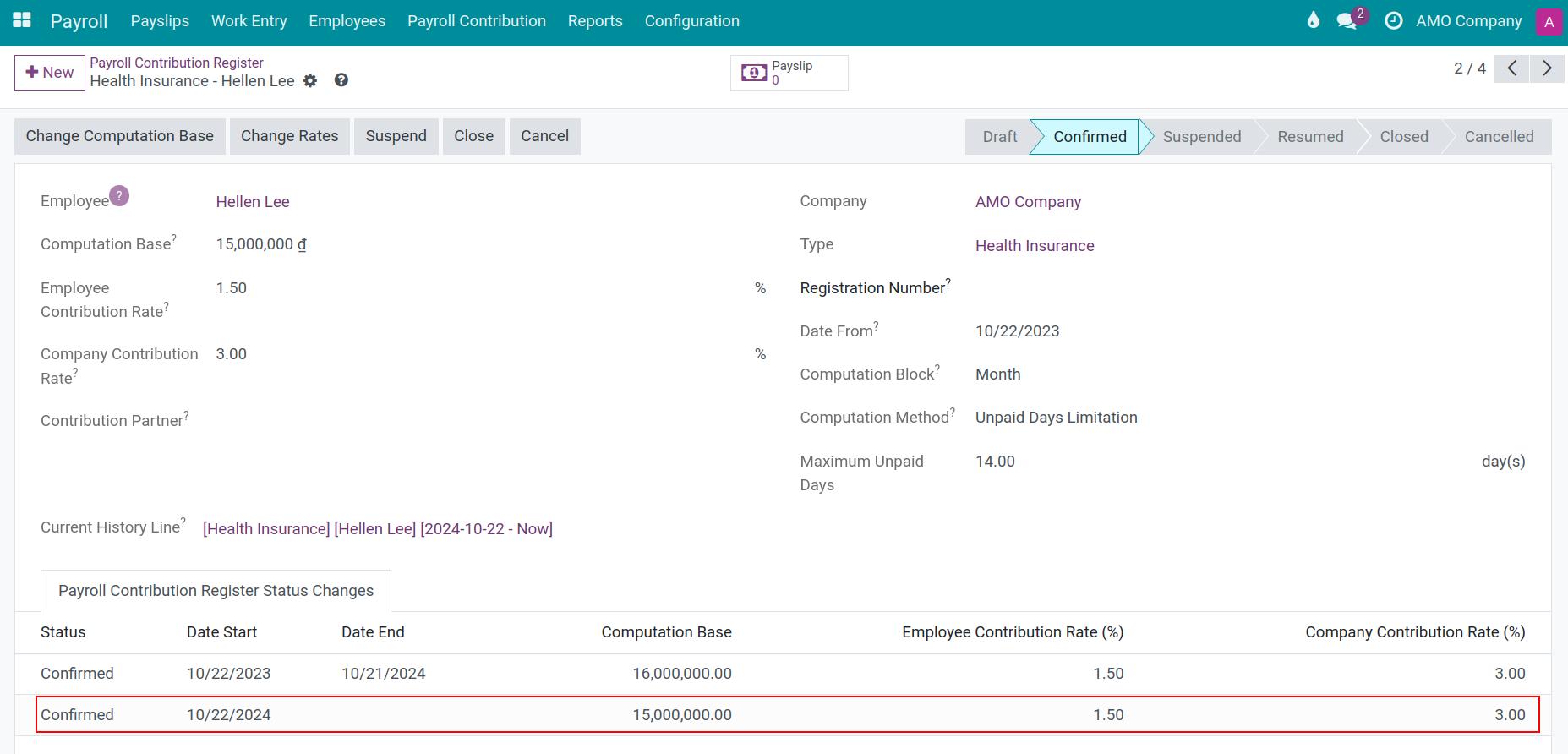
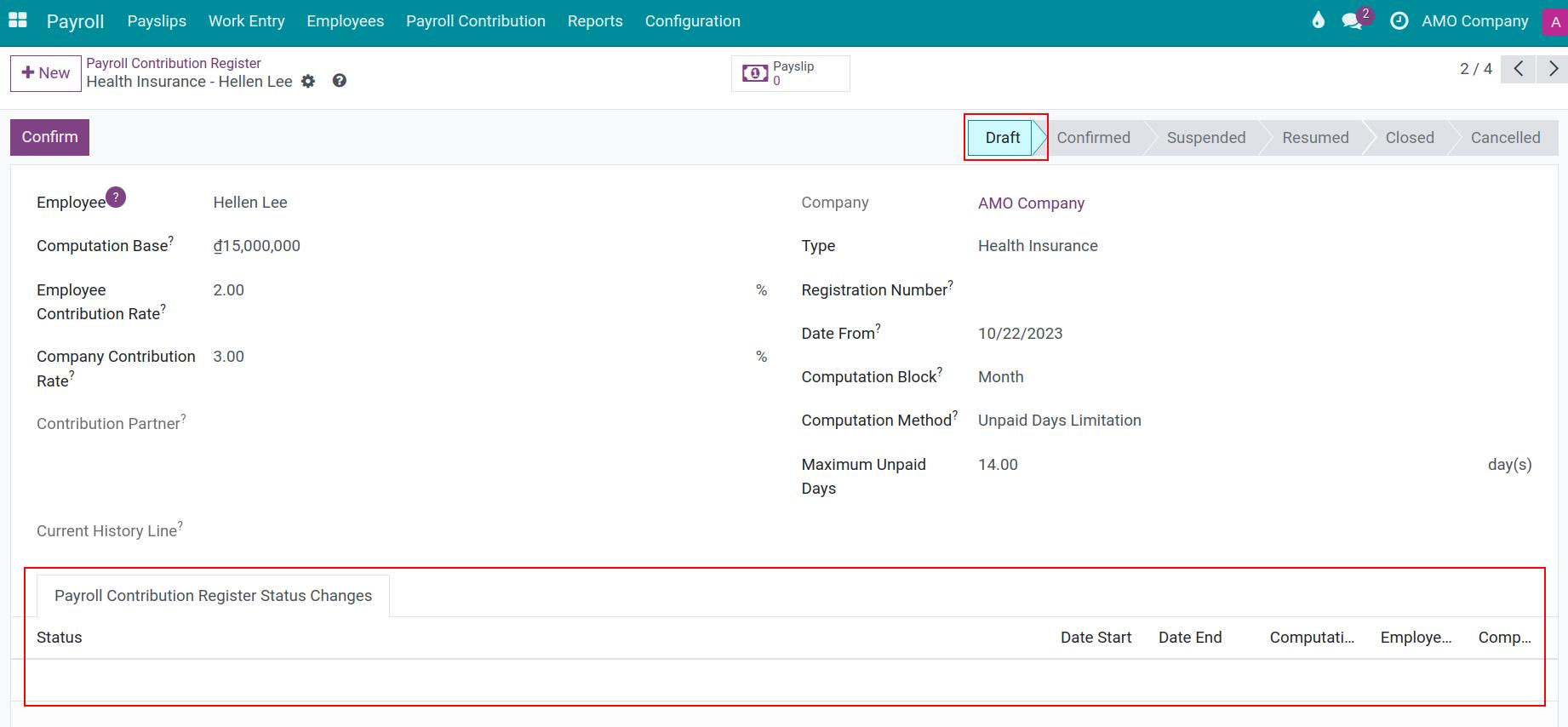
Click on Confirm to complete the insurance contribution register for the employee. The status of employee insurance contribution is in the Payroll Contribution Register Status Changes tab.
Change, suspend, close and cancel a insurance contributions register
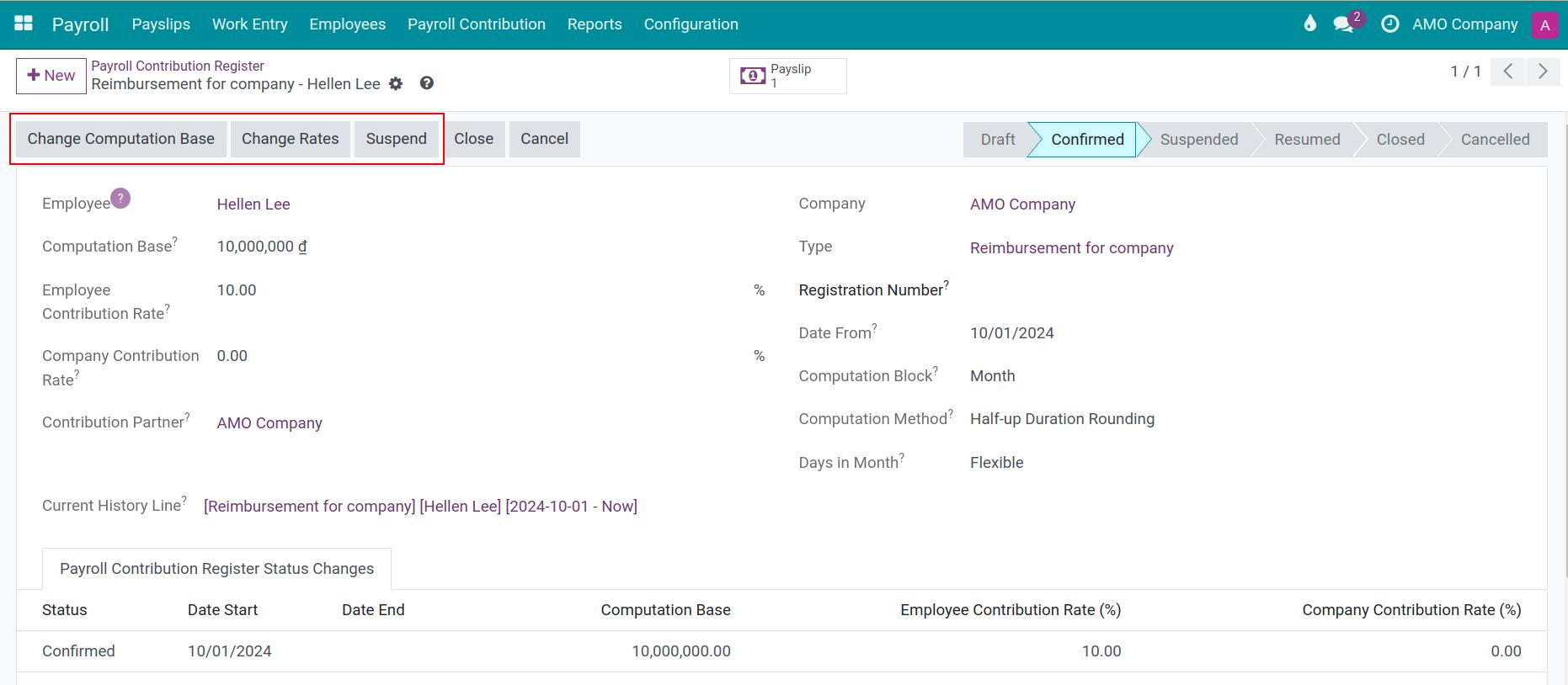
Sometimes, the insurance contributions will have changes and the changes history of each time should be kept in order to track progress. Therefore, you should not edit or cancel these contributions but take advantage of the function buttons in the view of record. Access any record of payroll contribution and function buttons are on the upper left including:
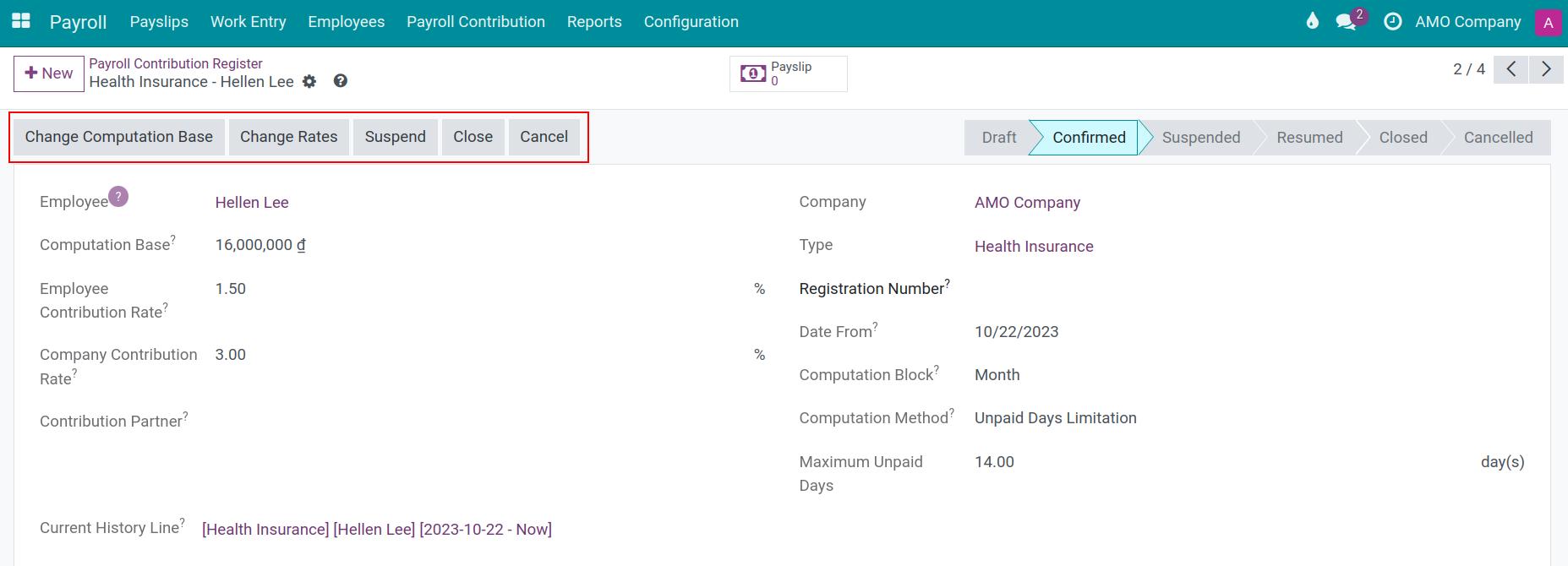
Change Computation Base
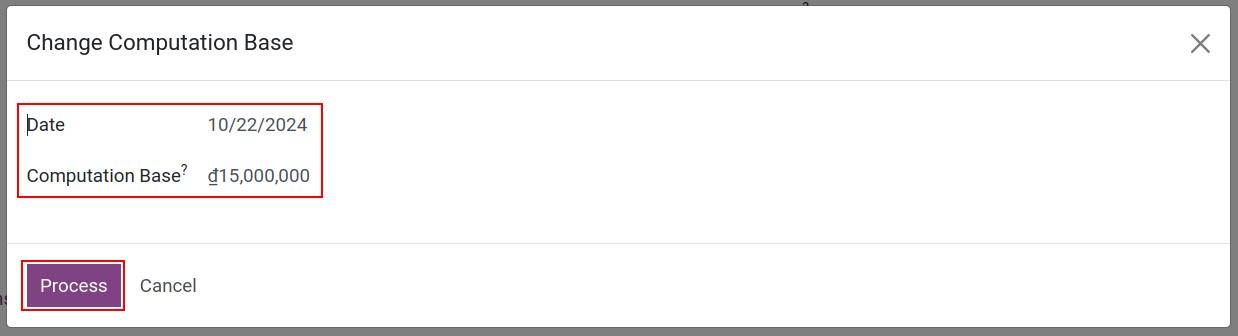
iSuite system assists to change the computation base for the record. Click on this button to open a wizard, enter Date corresponding to the start date of change and the new Computation Base.
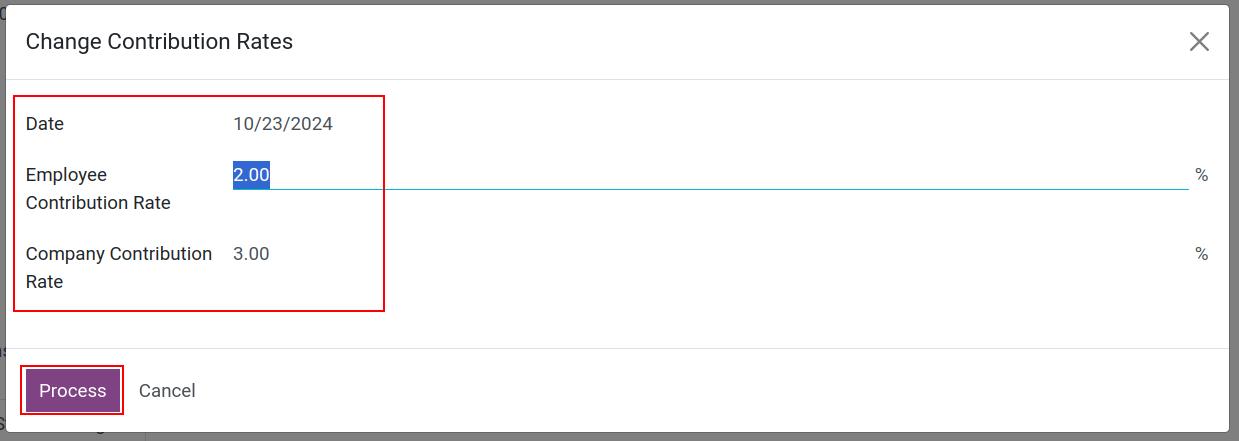
Change Rates
It is similar to changing the computation base, this button is also used to open a wizard to change the contribution rate of the employee and the company.
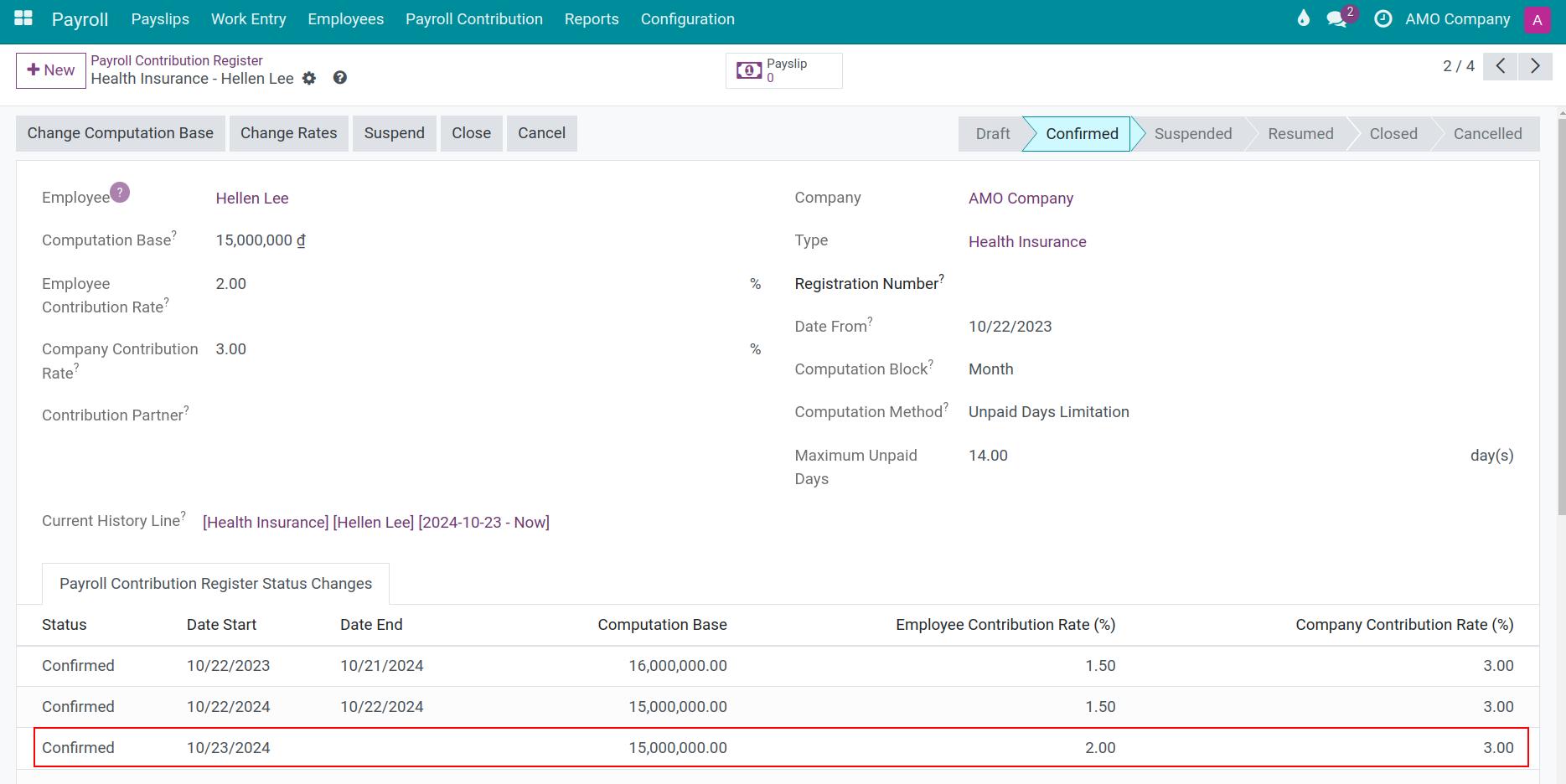
Suspend
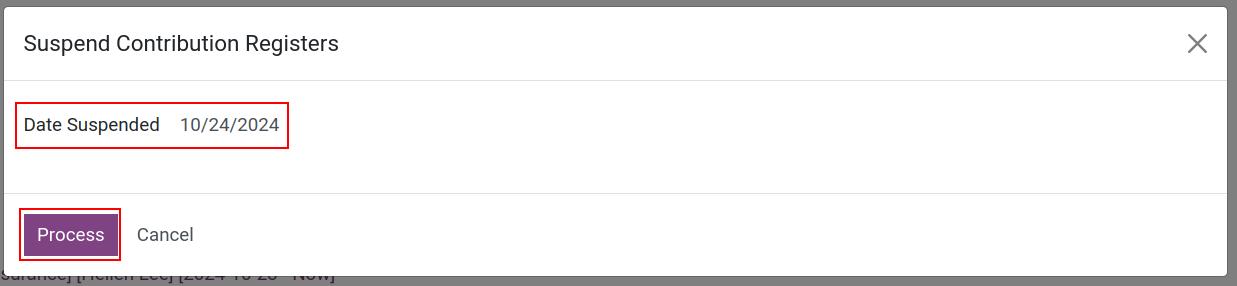
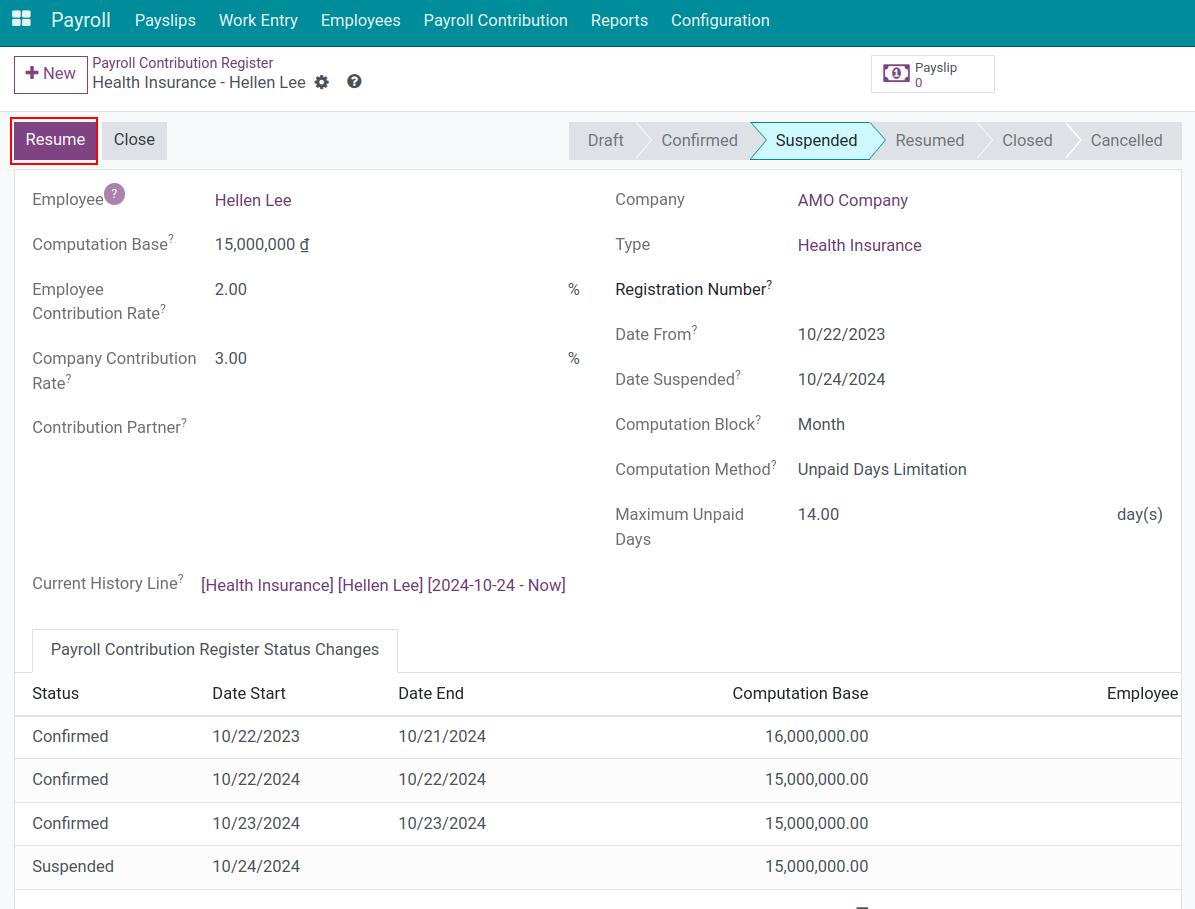
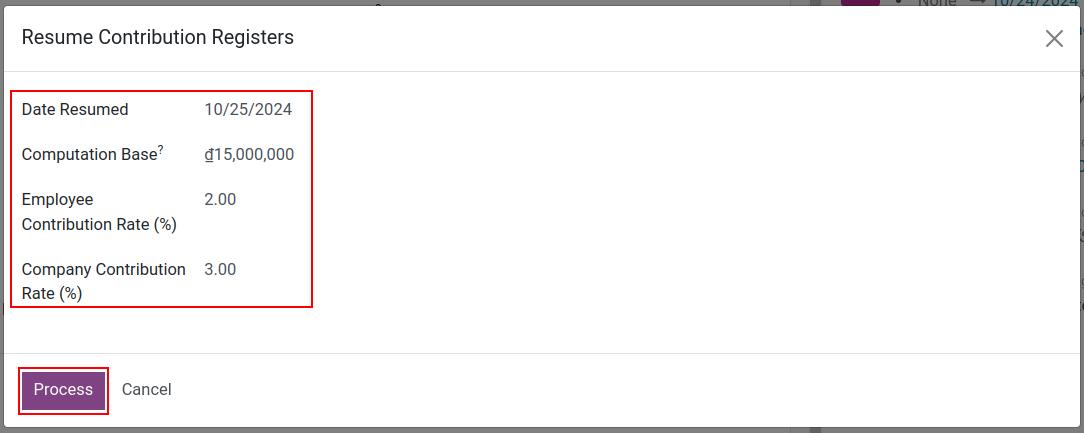
Use this button when you need to suspend an employee payroll contribution. Since the time of clicking, this insurance contribution will not take effect and could be reactivated when clicking the Resume button.
Close
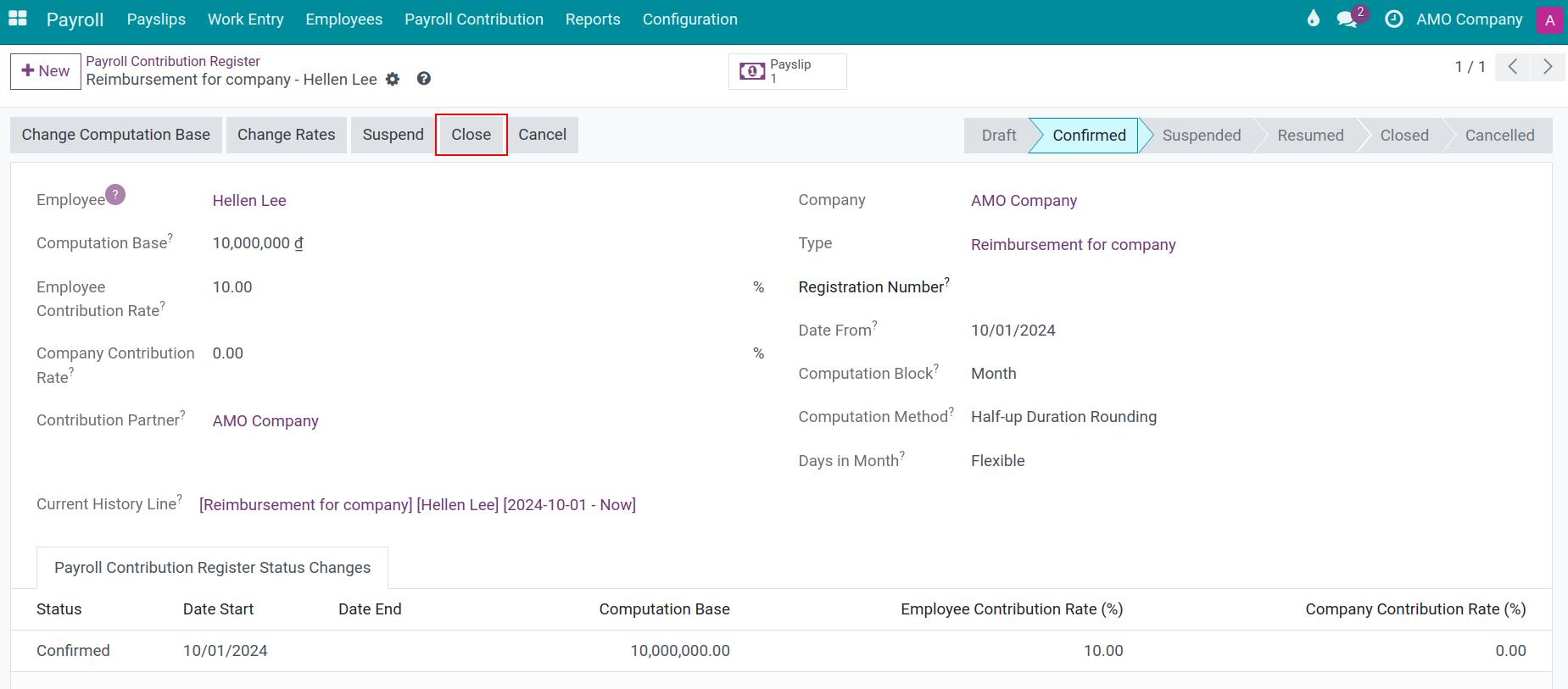
Use this button if you want to completely close the contribution register. This record could be reactivated when clicking the Resume button.
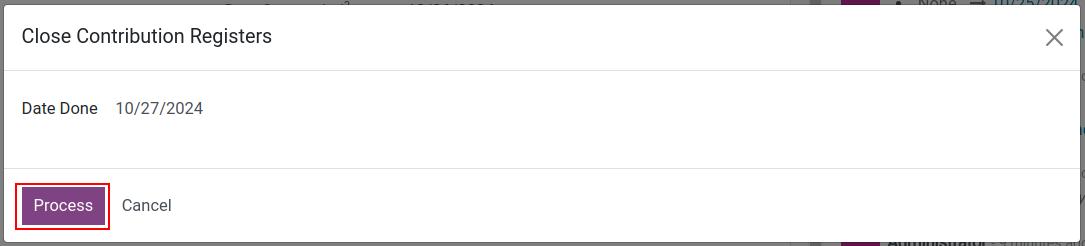
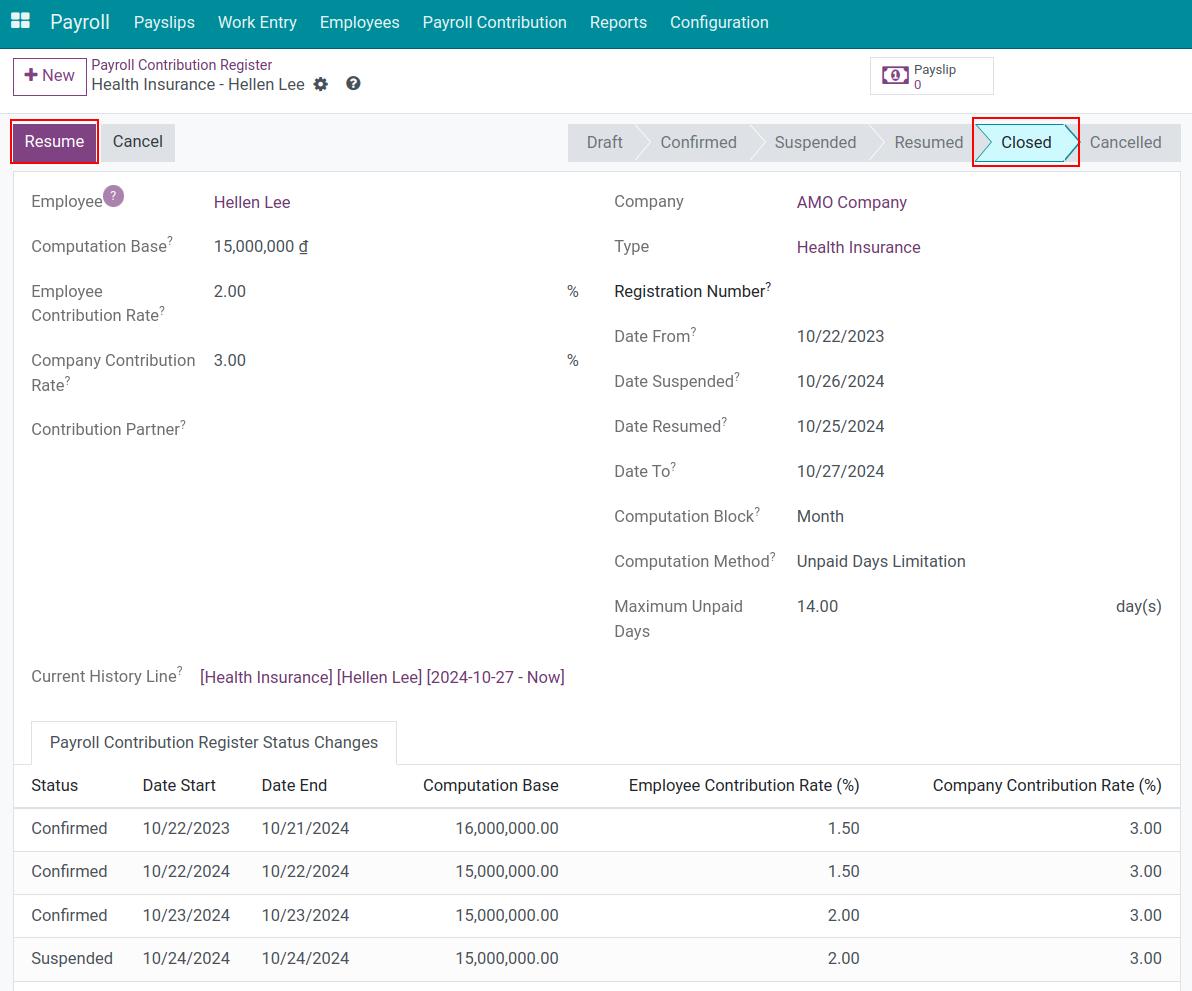
Note
- Note: when setting the effective date of activities, the valid times of the activities do not overlap.
- The operation of Suspend button and Close button is similar. However, you should use the above 2 features to distinguish between suspension of and completely closing the insurance application form (it can be reviewed on the Payroll Contribution Register Status changes tab) . Use the features flexibly according to each specific situation.
Cancel
The status of the record will be changed to Cancel if you click on this button. You could select the Reset to draft button to change the record status to the new state, however, the history of contribution status changes will not be saved.
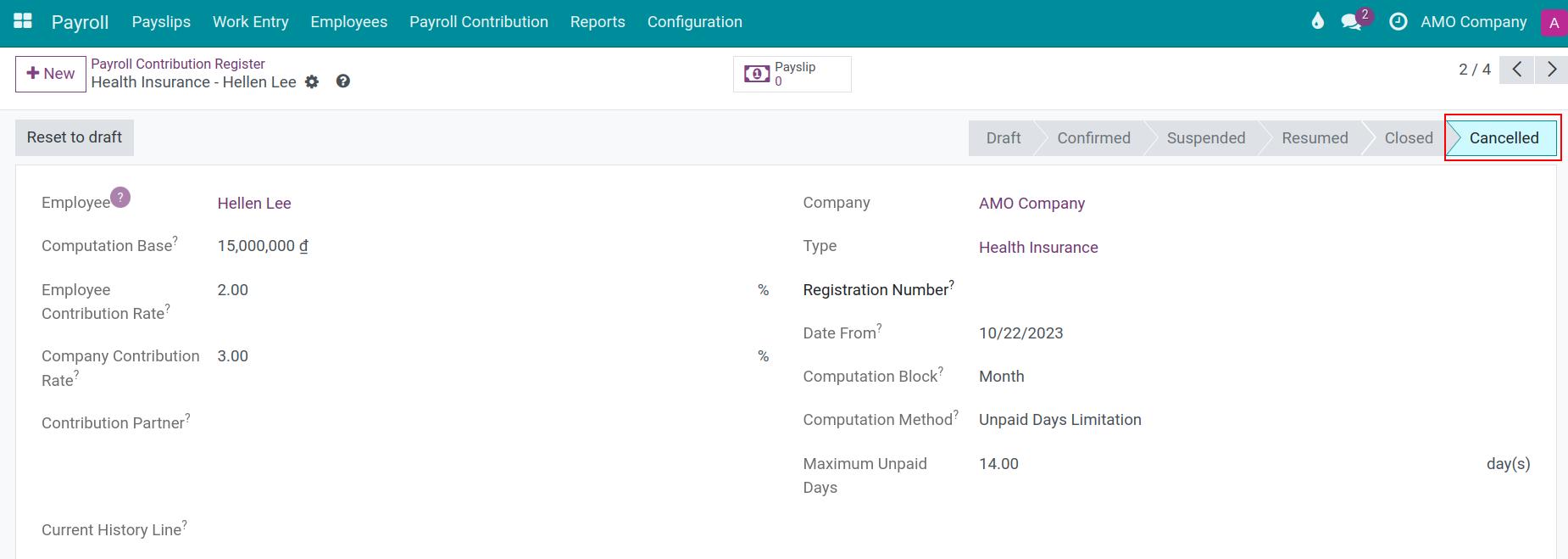
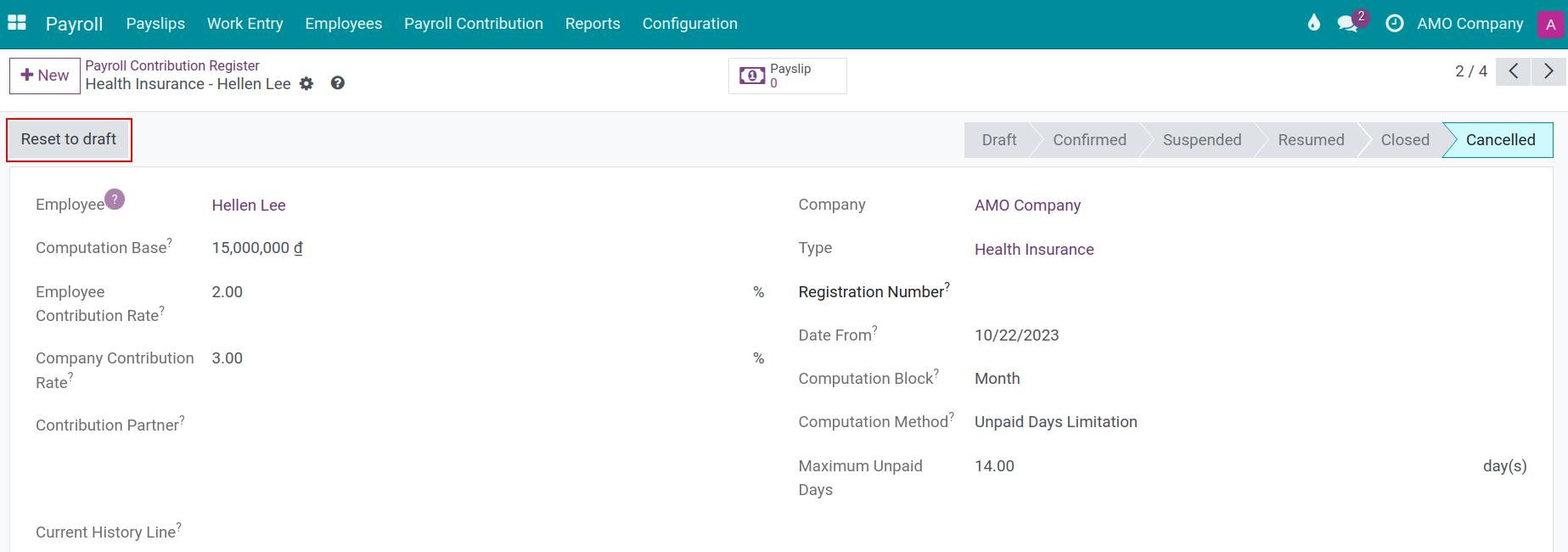
Massively change the insurance contribution rates
To serve the mass of insurance rate changes by-laws or newly enforced regulations, Viindoo system provides the feature of mass change rates for the contribution register that has been confirmed or restored. Navigate to Payroll ‣ Payroll Contribution ‣ Payroll Contribution Type and select one insurance contribution type that you want to modify.
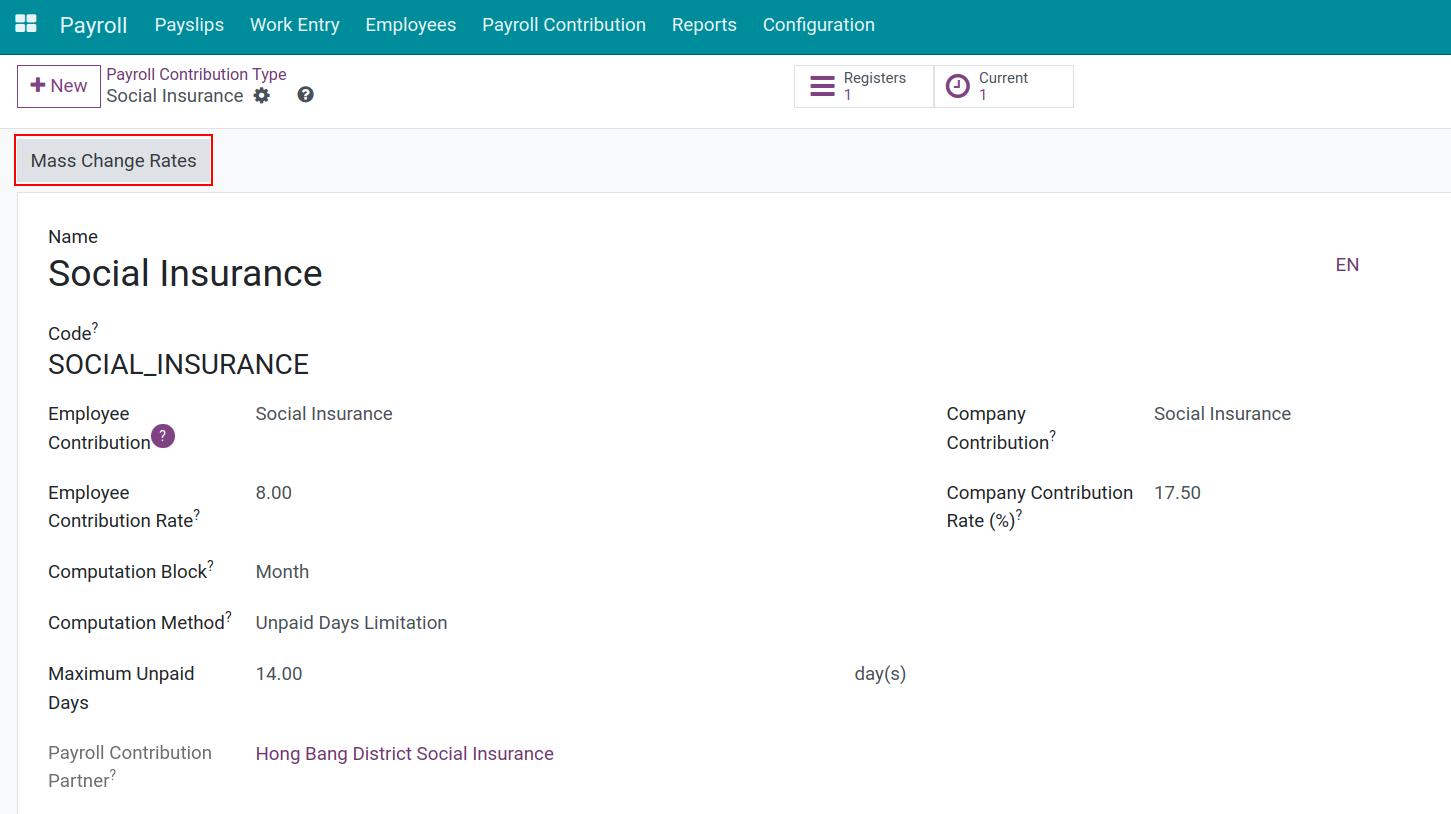
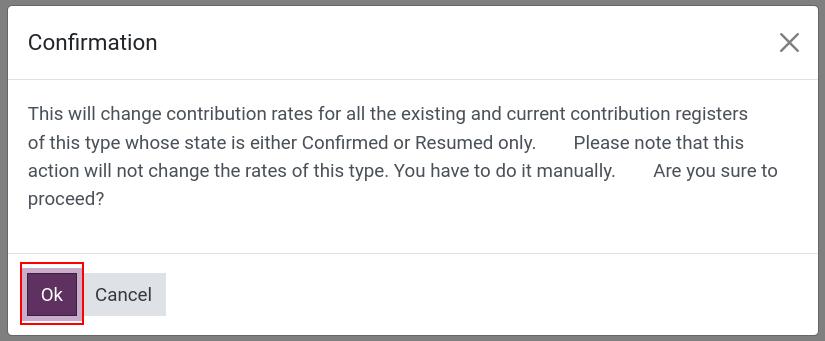
The Mass Change Rates button will be shown up in the record view. A confirmation wizard will pop out when clicking this button, select Ok to continue redirecting the view of change rates massively.
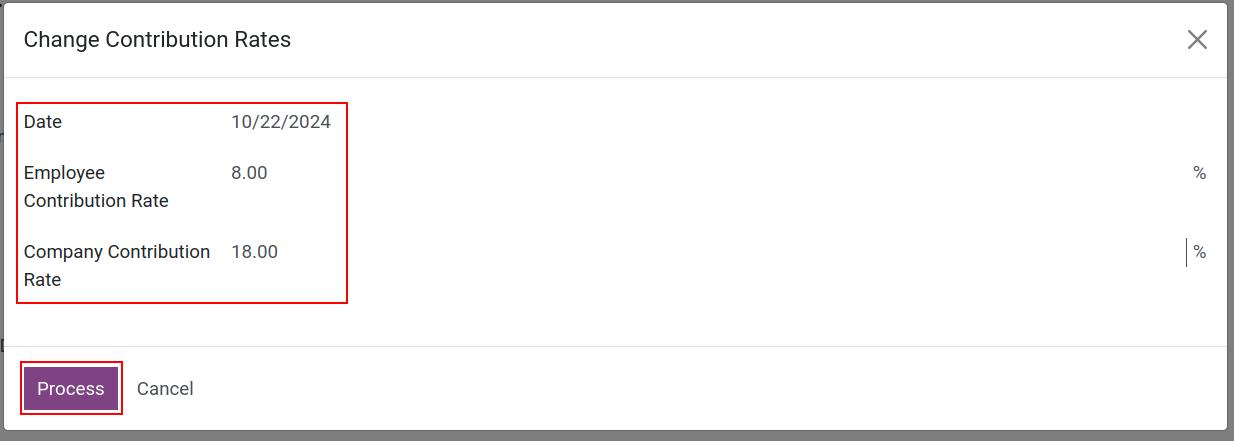
After fulfilling the changed information and effective day, click on Process to automatically change the rates for all registration records in the system.
Note
This change only affects contribution records in Confirmed or Restored status, not records in Draft. You have to manually modify these records or the insurance contribution type before creating a new one.
See also
Related article
- Payroll Contribution Register: Labor Union
- Payroll Contribution Register: Other cases
Payroll Contribution Register: Labor Union
Payroll Contribution Register: Labor Union
Besides insurance, another payroll contribution that enterprises need to set up for their employees is the Labor union fee. Setting up Labor union fees on the iSuite Payroll management app allows this fee to be auto-calculated on the employees’ monthly payslip.
Requirements
This tutorial requires the installation of the following applications/modules:
- Payroll
Set up the Labor union payroll contribution type
Refer to the following article to learn how to create payroll contribution type: Payroll Contribution Register: Insurances.
Create Labor union contribution register for your employees
You can create Labor union contribution register for your employee when creating the contract, or register from the Payroll app.
To create Labor union contribution register for employees from the Payroll app, navigate to Main menu ‣ Payroll ‣ Payroll Contribution ‣ Payroll Contribution Register ‣ New.

At the Labor union contribution register record, enter the following information:
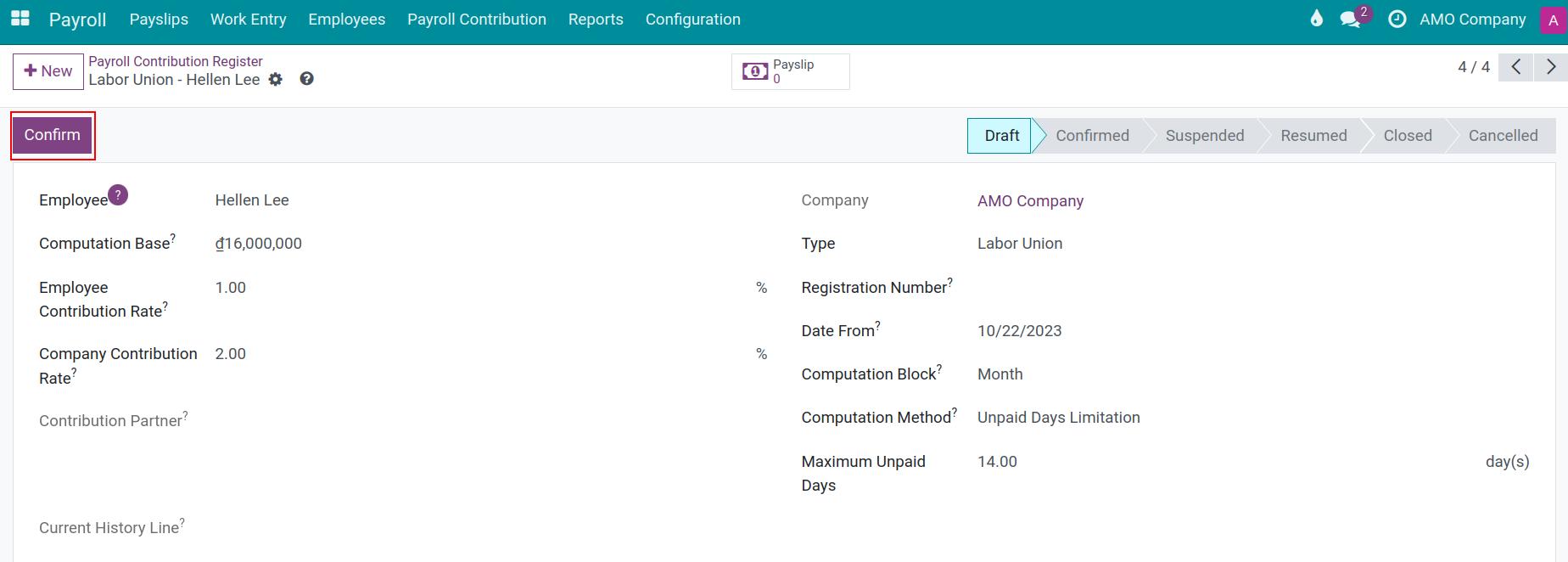
- Employee:Find and select the employees who has a valid contract to create the labor union contribution register.
- Type:Select the corresponding Labor Union Fee with the union fee registration.
- Registration Number:You can type the employees’ registration number to make it easier to find the record when needed.
- Date From:The start date of the employees’ union contribution registration.
- Computation base:The employee and company union contributions will be calculated by multiplying the respective contribution rate by this computation base. The base amount will be automatically suggested according to the salary data included in the contract if the registration is created from the employee contract.
Press Confirm to finish registering the union contribution for this employee. The Payroll Contribution Register Status Changes will show the contribution history of the employee.
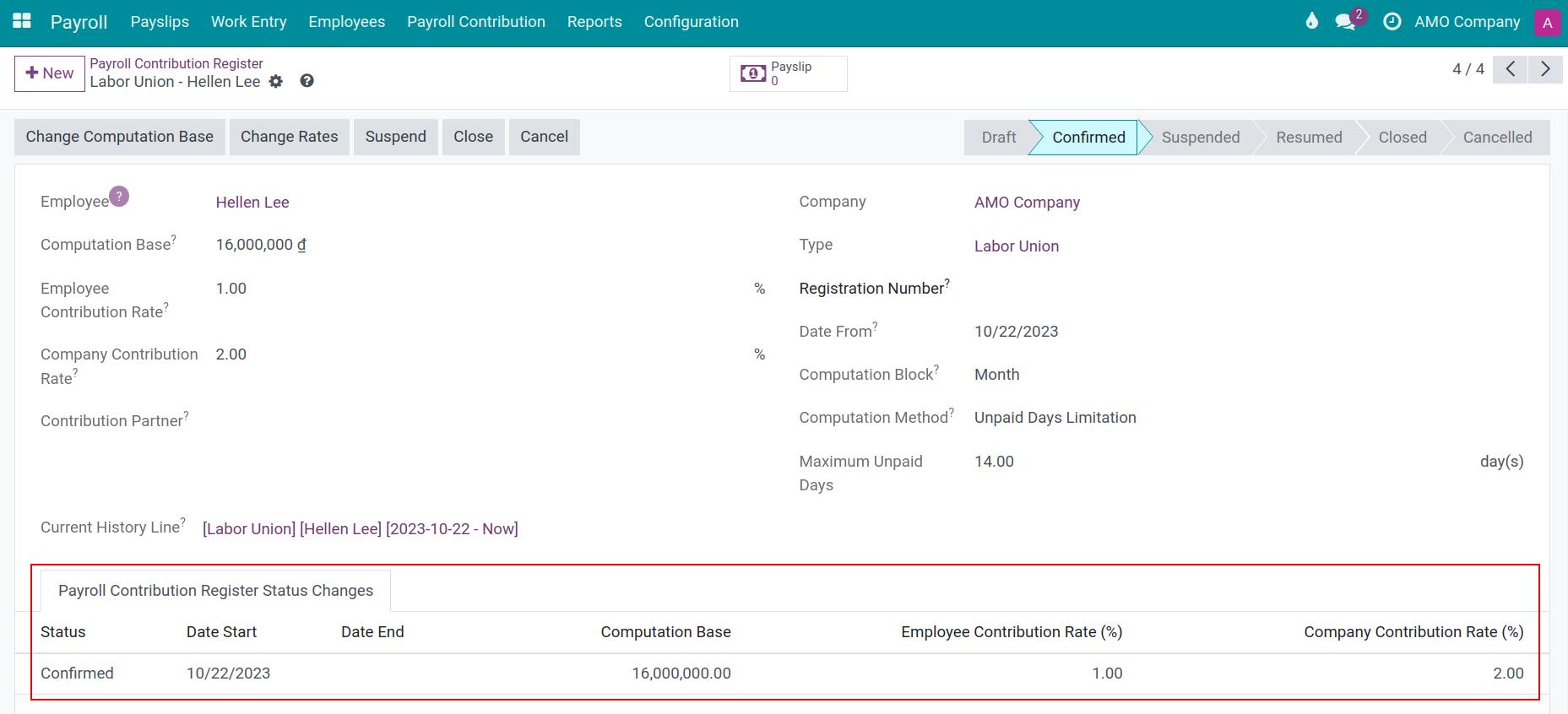
Change the information, suspend, close and cancel labor union registration
To mass change rates, change the information, suspend, close, and cancel labor union registration, refer to the following article: Payroll Contribution Register: Insurances.
Tip
You can mass-edit the contribution rate if there is any change in the prescribed contribution. Refer to the above link to see how to set it up.
See also
Related article
- Payroll Contribution Register: Other cases
Payroll Contribution Register: Other cases
Payroll Contribution Register: Other cases
Payroll contribution is the deduction amount from an employee’s salary. So, besides insurance and labor union, you can use the feature of payroll contribution register of employees in iSuite Payroll management app for other cases. For example:
- Deduction for the monthly fund;
- Return the salary advanced amount in some months, etc.
Requirements
This tutorial requires the installation of the following applications/modules:
- Payroll
Initial Configuration
To run some case of deduction amount from employee’s salary, we need to do some initial configuration as following:
Create Contribution Register
First, navigate to Payroll > Configuration > Contribution Registers. Click on New to create a new Contribution Register.
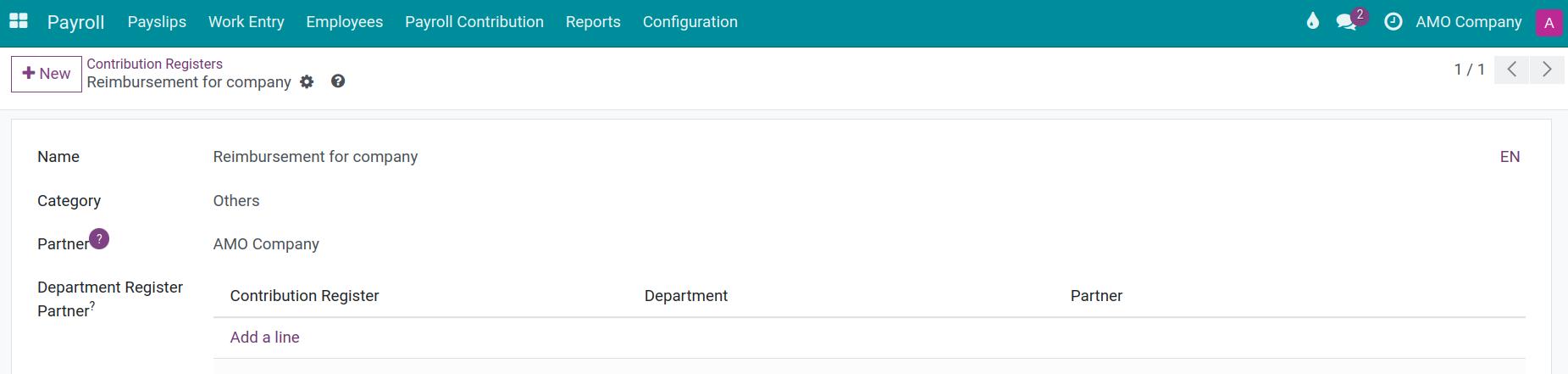
Create Payroll Contribution Register
Navigate to Payroll > Payroll Contribution > Payroll Contribution Type, press New to create a new type of payroll contribution:

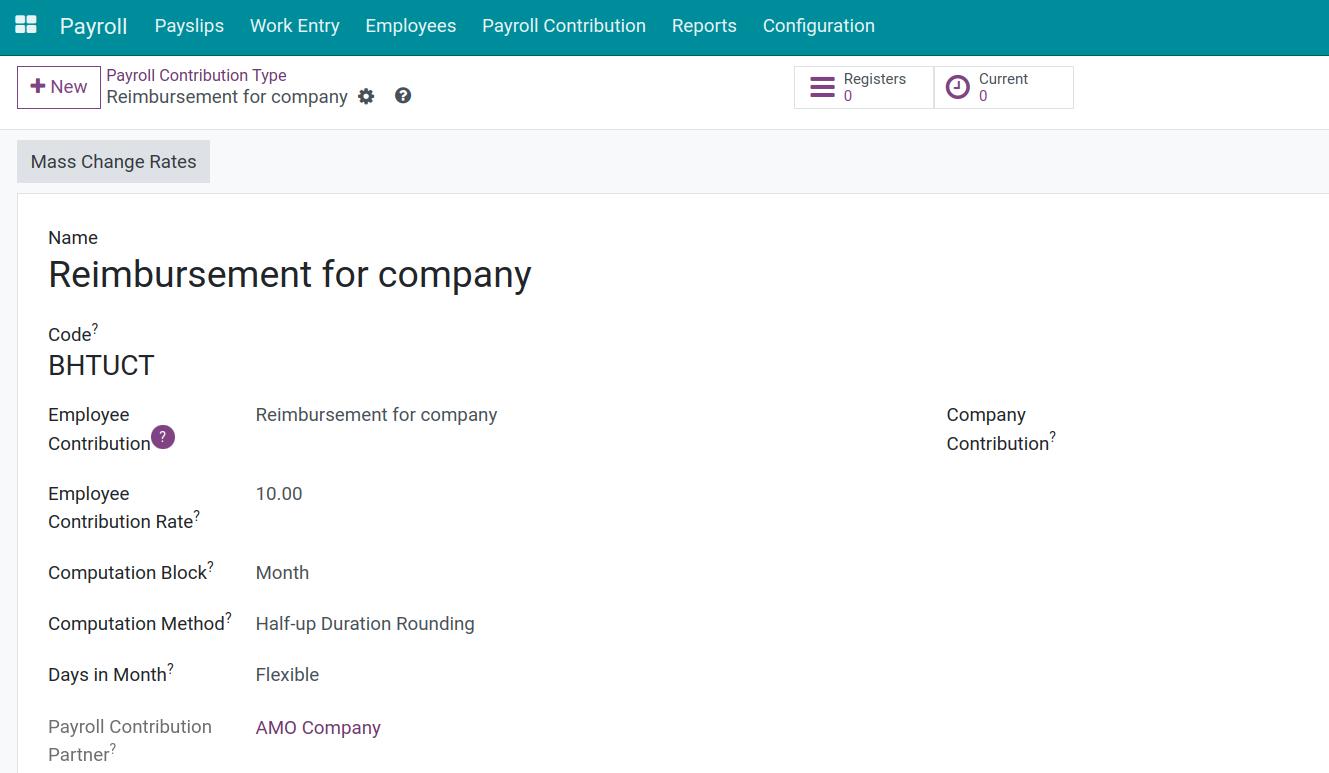
Then, navigate to Payroll > Payroll Contribution > Payroll Contribution Register and click on New to create a new register of employee deductions.

Fill in the following information:
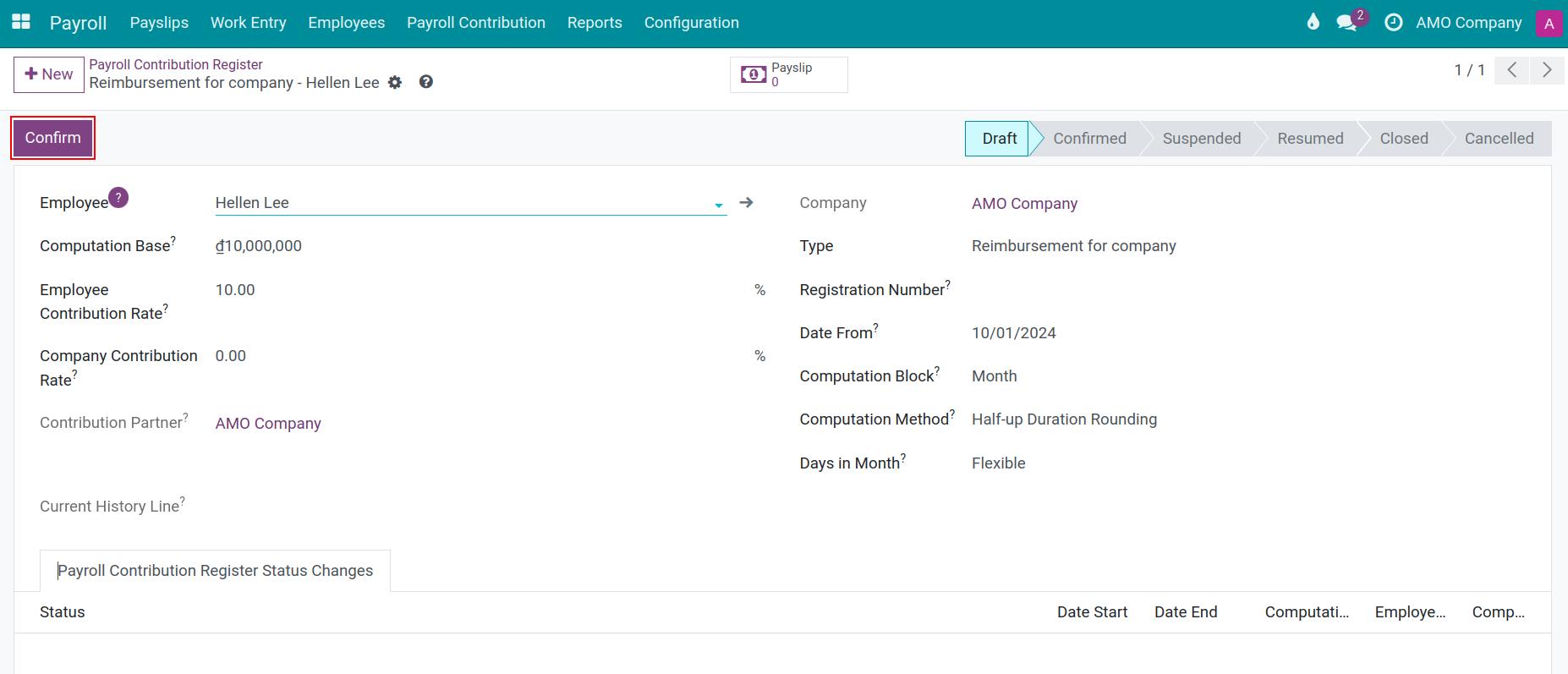
- Employee: select an employee.
- Type: select the created one.
- Computation Base: type in the base value to compute the deduction.
- Employee Contribution Rate: type in the contribution rate of the employee.
- Company Contribution Rate: keep it empty.
- Date From: the start date of the deduction period.
Click on Confirm to finish.
See also
- Payroll Contribution Register: Insurances
Using the Payroll contribution register to calculate employee’s deductions
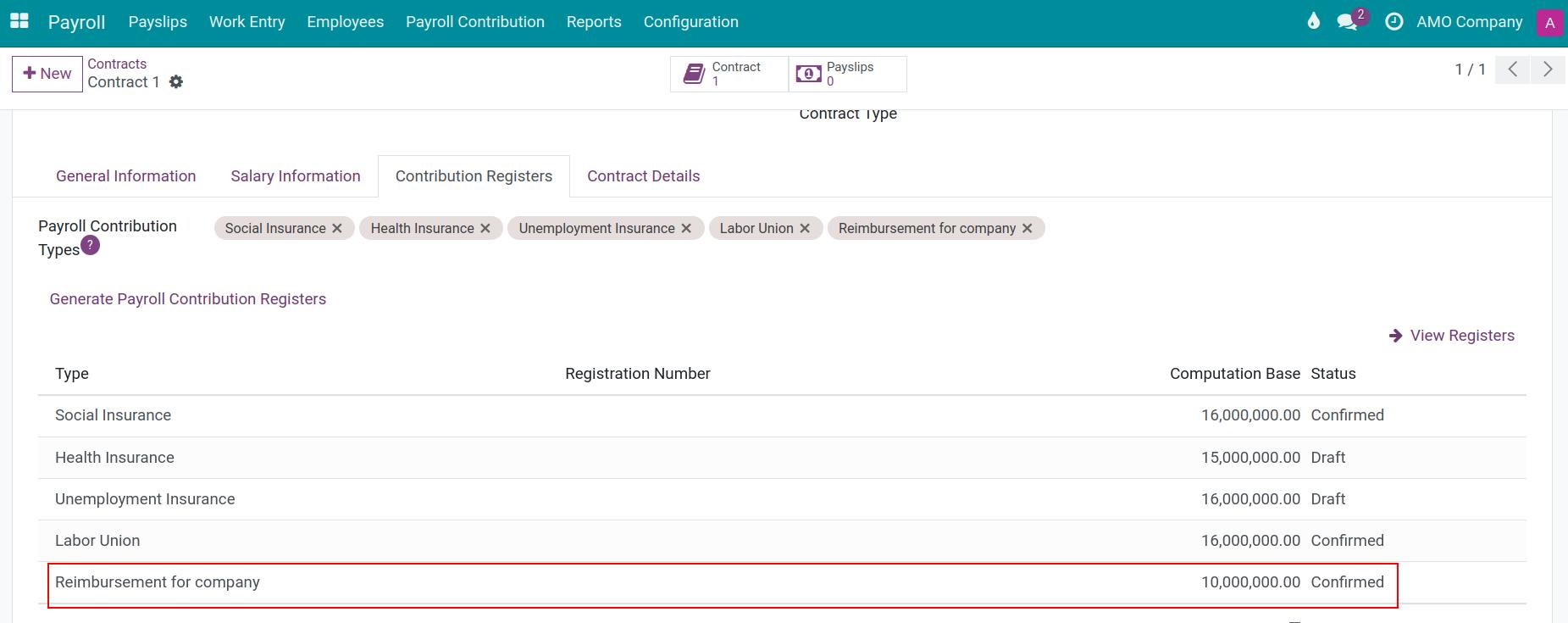
After register the payroll contribution, return to the employee’s contract, you will see the registraion.
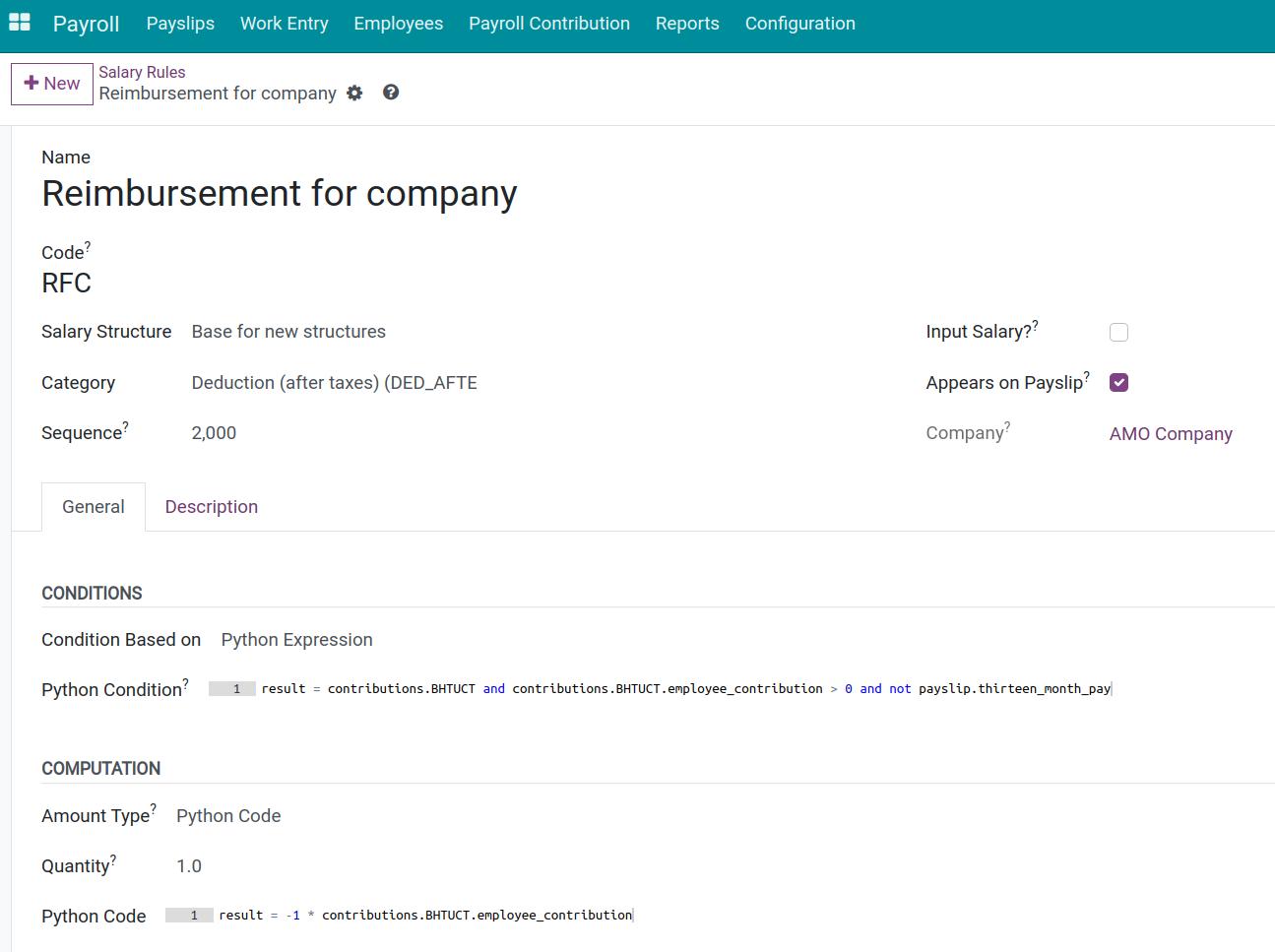
You can create a new salary rules for this deduction, and then, when monthly calculating this employee’s payslips, this amount will be appeared on their payslip.
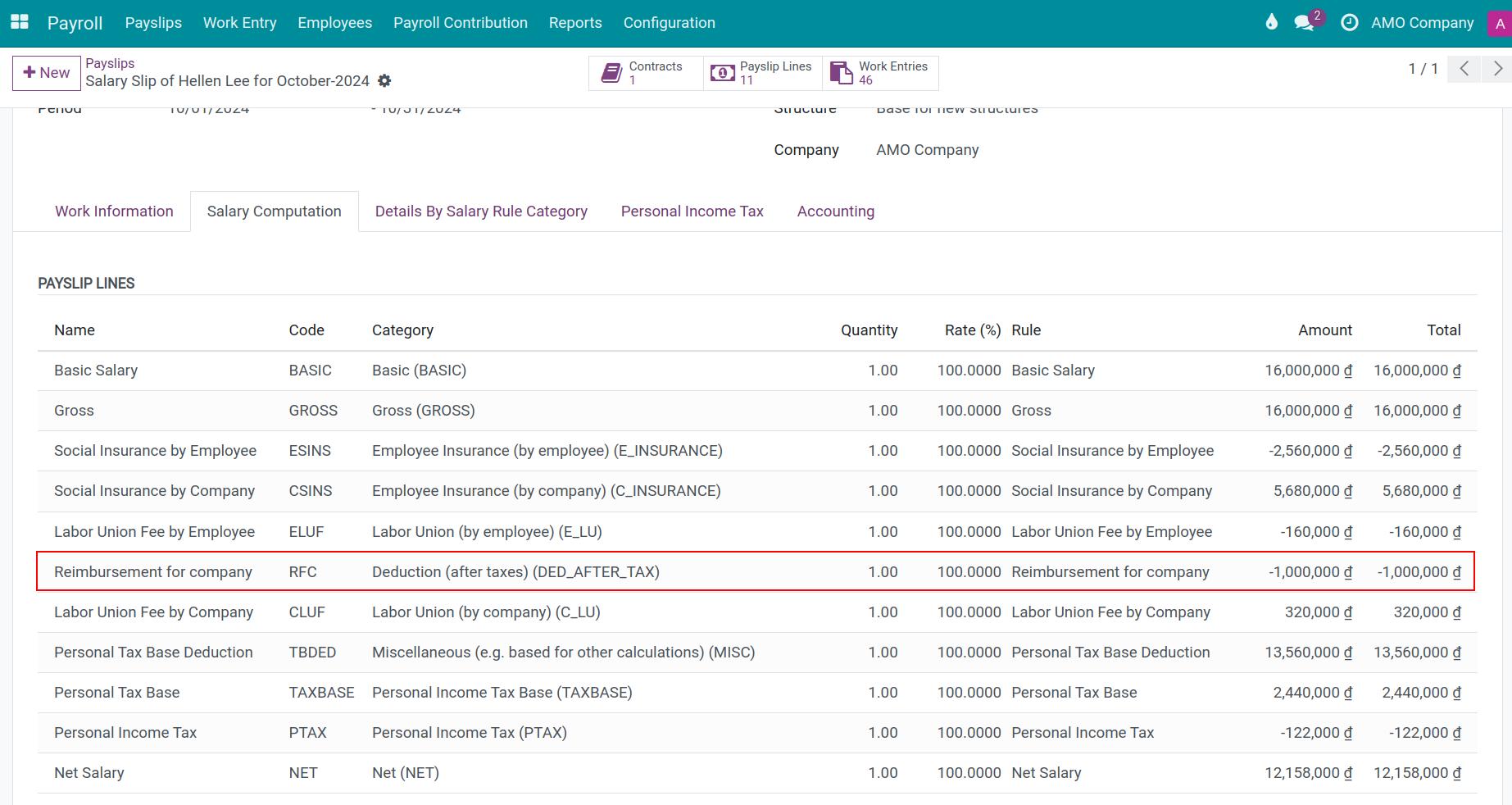
The deductions in the employee’s payslip.
Close a Contribution Register
Once finish the period of contribution, you can close this payroll contribution register. In the view of payroll contribution register, press on Close button:
In addition, you can change, suspend or cancel the contribution register, click on the corresponding buttons in the view of the Payroll Contribution Register.
See also
Related article
- Payroll Analysis